Let your team install the software they need - without local admin.
Fetch lets standard users install and update IT-approved software with elevated rights, so you can finally take local-admin away - without the helpdesk tickets.
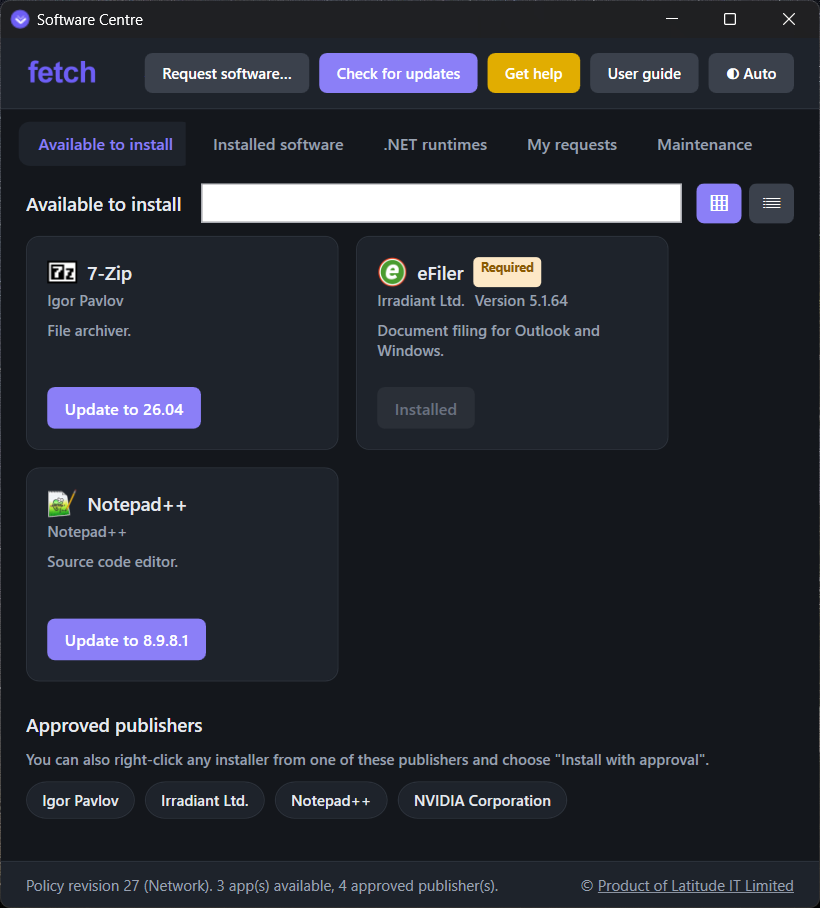
Remove local admin. Keep everyone productive.
Standing local-admin is the single biggest Windows risk. Fetch removes it without turning IT into a bottleneck.
No admin passwords handed out
Users click Install; a hardened service does the elevation. They never hold admin rights, and IT never shares a password.
Only what you approve
A signed policy allow-lists software by publisher or exact hash. Nothing else can be elevated - not even by the user.
Contained by design
Elevated installers run inside a job with child-process controls, so an installer can't be used as a way out to the whole PC.
Every elevation audited
A full, central record of who installed what, when - ready for Cyber Essentials, ISO 27001 and your own reviews.
Self-service Software Centre
Users install and update approved apps themselves - fewer tickets. Managed updates keep catalog apps current.
Request & approve
Need something new? Users request it; you approve from the hub. Every decision is tracked and the user is notified.
One hub for the fleet
Devices, inventory, activity, software requests and update alerts - filter and sort by uptime, overdue updates, encryption or Windows version, and spot day-to-day accounts holding admin rights. Tag devices with your own labels (a user, a service tag, "Finance") to filter or act on a group, and export a device or software inventory to CSV.
Push, queue and follow
Deploy an app, an update or a Windows upgrade to one PC or many from the hub. Installs queue and run one at a time, and you - and the user - can follow each one live in Activity.
Restarts that respect work
Updates only count once a PC restarts. Fetch reminds users only when Windows Update itself says a restart is due - firmer and more often the longer they wait, telling them how many days updates have been waiting - but never pulls the plug on an overnight render. You set the escalation; a forced restart is your call.
Silent auto-updates
Agents update themselves silently from a channel you control - same-publisher, hash-verified. No re-imaging.
Works offline
Clients run from a cached, signed policy when they can't reach the server, so a dropped link never blocks a user.
Self-service housekeeping
Optional tools let users free up disk space and clear unwanted desktop shortcuts themselves - safely, within limits you set, and audited. Fewer tickets.
Up and running in an afternoon
No domain controller changes, no agents to babysit.
Sign up & install
Start a trial, install the Policy tool, and sign in with your email - your enrolment key is handed to you, no keys to copy by hand.
Build your policy
Approve publishers and build a one-click catalogue of the apps your team needs. Sign it with your own key and publish.
Deploy the agent
Roll out the lightweight agent to your PCs. Users get the Software Centre; you get the hub. Take local admin away.
Trust the signature, not the folder
Fetch is built security-first, so it holds up to scrutiny.
Signed policy
The policy is signed with your private key and verified on every client. A compromised server can't push bad policy.
Publisher & hash allow-listing
The same model used by AppLocker and WDAC - pin a vendor (e.g. NVIDIA) for drivers, or an exact hash for a specific build.
Encrypted secrets at rest
Signing keys and recoverable keys are encrypted at rest; the command channel is provider-signed and tightly scoped.
A Policy tool only you can open
Optionally lock the Policy tool with Windows Hello or an emailed code - when it opens, after idle time and before publishing - so nobody at an unlocked PC can change your policy. Admins can be emailed every time a policy is published.
Locked-down agent
The agent's own files are SYSTEM-only, installers run contained with child-process checks, and everything it does - every install, update and command from the hub - is logged on the PC and the hub.
Nothing left half-done
Updates are confirmed by the installed version, not just the installer's word. Apps that can't update in place are flagged to replace - safely, new installer verified first - and per-user apps move to an all-users install without an admin prompt.
Make Cyber Essentials and ISO 27001 easier
Fetch helps you meet the controls assessors ask about - and keeps the evidence - so audits are far less of a scramble.
Least privilege, by default
Removing local admin and controlling who can install software is central to Cyber Essentials User access control and ISO 27001 A.8.2 privileged access. Fetch lets you take admin away without breaking anyone's day.
Only approved software runs
A signed allow-list governs what can be installed and elevated - supporting Cyber Essentials Secure configuration and ISO 27001 A.8.19 installation of software.
Security updates, on a deadline
Set a patch window (say 14 days) and Fetch installs Windows Security/Critical updates automatically across the fleet - no WSUS or Intune. An un‑rebooted update isn't really patched, so users get a restart reminder that escalates the longer it's put off - without ever losing their work; a forced restart is there only if you switch it on. The hub flags only the exceptions: devices still behind, or waiting on a restart, past your deadline. Exactly the control Cyber Essentials Security update management (and ISO 27001 A.8.8) asks about.
No PCs on unsupported Windows
Cyber Essentials says unsupported software must go - and a PC on an old Windows release (say 23H2 or 24H2 Pro) quietly stops getting security fixes while still looking "up to date". Fetch flags every PC past Microsoft's end-of-support date, warns you 90 days ahead, and upgrades them to a minimum version you choose - from the hub or by policy. It's a floor, never a pin: newer PCs keep moving forward - and you can try a newer release (say 26H2) on one PC first.
Out-of-support runtimes, safely removed
Old .NET and Visual C++ runtimes linger on almost every PC. Fetch shows which ones are out of support, checks which installed apps still need them - per framework, per device - and lets you remove the unused ones in one click, while keeping the ones an app depends on. Plus fleet-wide version drift: see who's behind on each app and align them to the latest.
Drivers & firmware in view
Every PC reports its maker, model, graphics card and BIOS. The hub spots firmware older than other PCs of the same model (or over two years old), recommends the maker's own update tool, and updates drivers through Windows Update for each PC's own hardware - helping with ISO 27001 A.8.8 technical vulnerabilities.
Evidence on tap
Every elevation is logged centrally - who installed what, when - so you can show assessors the audit trail instead of reconstructing it (ISO 27001 A.8.15 / A.8.16).
BitLocker, with keys only you can read
See which devices are encrypted, and turn BitLocker on for all of them or just the ones you choose - no Intune or domain needed. Each recovery key is sealed to your key before it leaves the PC, and a drive is only encrypted once its key is safely stored, so the hub never holds a key it can read. Encryption at rest for Cyber Essentials, ISO 27001 A.8.24 and GDPR.
Unused software, found for you
Optional app-usage tracking flags installed apps nobody has opened in 90 days, so you can remove what you don't need - Cyber Essentials Secure configuration asks exactly that - and reclaim the licences you're paying for.
Fetch is a supporting control that helps you meet these requirements; certification remains your organisation's own assessment.
Try Fetch free for 14 days
Unlimited devices during the trial. After that, keep using Fetch free within a device limit - upgrade any time for the whole fleet and support.
Frequently asked questions
Does Fetch require users to have local admin rights?
No. Users stay standard users. A hardened Windows service performs the elevation for approved software, so no admin password is ever shared and no standing local-admin rights are needed.
What software can users install?
Only software your IT team has approved in a signed policy - allow-listed by publisher or exact hash. Nothing outside that list can be elevated, even by the user.
Does Fetch need Intune, a domain or WSUS?
No. Fetch works on domain-joined and workgroup PCs with no Intune or WSUS required, and runs from a cached signed policy when offline.
Can Fetch keep Windows security updates applied?
Yes. Set a patch window and each agent installs Windows Security/Critical updates automatically once they reach that age - no WSUS or Intune. When a restart is needed, users get a reminder that escalates the longer it's put off; Fetch never restarts a PC unless you turn that on as a last resort (and then users are told the deadline first). The hub flags only devices still behind past your deadline, which is handy evidence for Cyber Essentials. (On PCs already managed by WSUS/Intune, leave auto-install off and just use the reporting.)
Can Fetch upgrade PCs on an unsupported Windows version?
Yes. The hub flags PCs whose Windows release is past Microsoft's end of support (or within 90 days of it), and can upgrade them to a minimum version - one PC, all flagged PCs, or automatically by policy. It checks power and disk space first, keeps apps and files, and finishes at the user's next restart. PCs already on that version or newer are never touched or held back.
Can Fetch manage BitLocker?
Yes. Every device reports its BitLocker status, and you can turn BitLocker on across the fleet or for selected devices, with no Intune or domain. Recovery keys are escrowed sealed to your own key - the hub can't read them - and a drive is only encrypted after its key is stored. You recover a key in the Policy tool by machine name or the Key ID on the recovery screen.
How much does Fetch cost?
Start with a free 14-day trial (unlimited devices). After that you can keep using Fetch free within a device limit, or upgrade any time for the whole fleet and support.
Which Windows versions are supported? What else is needed?
Windows 10 and Windows 11 (64-bit). The agent and the Policy tool need Microsoft's free .NET 8 Desktop Runtime (x64) - the installer checks for it and tells you if it's missing.
Download Fetch
Install the Policy tool to set up your organisation, then roll out the agent. Needs the free .NET 8 Desktop Runtime. Current version 1.0.55
New here? Start a trial first - you'll get your enrolment key and setup steps.